

Master Your Remote Work Setup: Essential Guide 2026
Introduction
Working from home sounded like a dream until you realized your kitchen table wasn’t cutting it as a workspace. Your back aches, your internet drops during important calls, and somehow your productivity has taken a nosedive. Sound familiar?
You’re not alone. Millions of people jumped into remote work without the right setup, and they’re paying the price in discomfort and lost efficiency. But here’s the good news: creating an effective remote work setup doesn’t require a complete home makeover or a massive budget.
In this guide, you’ll discover everything you need to build a workspace that actually works for you. We’ll cover the essential equipment, ergonomic principles, tech requirements, and productivity strategies that make remote work sustainable and successful. Whether you’re a remote work veteran or just getting started, you’ll find practical solutions to common challenges.
The Foundation: Choosing Your Workspace

Before you buy anything, you need to select the right location in your home. This decision affects everything that follows.
Start by evaluating the available spaces in your home. You need a spot that offers reasonable privacy and minimal distractions. It doesn’t have to be a separate room, though that’s ideal. A corner of your bedroom, a section of your living room, or even a converted closet can work if you set it up thoughtfully.
Consider the natural light in potential spaces. Good lighting reduces eye strain and improves your mood. A spot near a window is perfect, but make sure you can control glare on your screen. You’ll also want to think about noise levels throughout the day. If you share your space with family or roommates, choose a location away from high-traffic areas.
Temperature control matters more than most people realize. Avoid spots directly under air vents or near drafty windows. You should feel comfortable throughout your workday without constantly adjusting the thermostat. Power outlet access is another practical concern. You’ll need multiple outlets for your equipment without relying heavily on extension cords.
Essential Equipment for Your Remote Work Setup
Your equipment directly impacts your productivity and physical comfort. Let’s break down what you actually need versus what’s just nice to have.
The Right Desk
Your desk serves as the foundation of your remote work setup. You need enough surface area for your computer, any paperwork, and a few essentials like your phone and a water bottle.
Standard desks work fine for most people, but height-adjustable standing desks offer significant benefits. They let you alternate between sitting and standing throughout the day. This variation helps reduce back pain and keeps your energy levels more consistent. If a standing desk exceeds your budget, consider a desk converter that sits on top of your existing surface.
Size matters when choosing a desk. Measure your space before shopping. A desk that’s too large overwhelms a small room, while one that’s too small leaves you cramped and disorganized. Most people find that a desk around 48 to 60 inches wide provides adequate space without dominating the room.
Your Chair: Don’t Compromise Here
I cannot stress this enough: invest in a quality office chair. This is not the place to cut corners. You’re sitting for hours every day, and a poor chair leads to back pain, neck strain, and long-term health problems.
Look for a chair with adjustable height, lumbar support, and armrests. The seat should be deep enough to support your thighs without pressing behind your knees. Breathable mesh backing keeps you cooler than solid padding. Your feet should rest flat on the floor when you sit with your back against the chair.
Test chairs in person if possible. What feels comfortable for ten minutes in a showroom might not work for eight-hour workdays. Read reviews from people who actually use the chair for extended periods. Budget at least $200 to $400 for a decent ergonomic chair, though you can find good options in sales or refurbished.
Computer and Monitor Considerations
Your computer needs depend on your specific work requirements. If you’re doing basic tasks like email, video calls, and document editing, a mid-range laptop handles everything smoothly. Creative professionals working with video editing, graphic design, or large datasets need more powerful machines with better processors and more RAM.
Adding an external monitor transforms your productivity. Dual screens let you reference information on one display while working on another. You stop constantly switching between windows and tabs. Position your monitor at arm’s length with the top of the screen at or slightly below eye level. This positioning reduces neck strain significantly.
Consider monitor size based on your work and space. A 24-inch monitor works well for most people. If you frequently work with multiple documents or spreadsheets simultaneously, a 27-inch or larger screen gives you more room to spread out. Some people prefer two smaller monitors over one large one, which offers more flexibility in arranging windows.
Keyboard and Mouse Ergonomics
The keyboard and mouse that came with your computer probably aren’t ideal for all-day use. Ergonomic keyboards with a split design or slight angle reduce wrist strain. Mechanical keyboards offer better tactile feedback, though they’re louder than membrane keyboards.
Your mouse should fit comfortably in your hand without requiring you to grip tightly. Vertical mice position your hand in a more natural handshake position, reducing strain on your wrist and forearm. Trackballs offer an alternative that keeps your hand stationary, which some people find more comfortable.
Position your keyboard so your elbows stay close to your body and your wrists remain straight while typing. Your mouse should sit at the same level as your keyboard, close enough that you don’t need to reach for it.
Technology Infrastructure
Equipment is only half the battle. Your technology infrastructure needs to support reliable, secure remote work.
Internet Connection Requirements
Your internet speed determines whether you can participate in video calls without freezing or upload large files without waiting forever. For basic remote work, you need at least 25 Mbps download and 5 Mbps upload speeds. Video conferencing works better with 50 Mbps download speeds or higher.
Test your actual speeds using free online tools. If your speeds fall short, contact your internet service provider about upgrading your plan. Position your router centrally in your home for better coverage. If your workspace sits far from the router, consider a mesh WiFi system or a wired ethernet connection for more stability.
Have a backup plan for internet outages. This might mean using your phone as a mobile hotspot or knowing where nearby coworking spaces or cafes with reliable WiFi are located. Some remote workers keep a backup internet service from a different provider for critical situations.
Webcam and Audio Equipment
Your laptop’s built-in webcam and microphone probably suffice for occasional video calls. If you’re on camera frequently, upgrading these components makes you look and sound more professional.
External webcams offer better image quality and positioning flexibility. Look for 1080p resolution at minimum. Position your webcam at eye level so you’re looking directly at the camera during calls rather than up or down.
Clear audio matters even more than video quality. Background noise and echo make you difficult to understand. A USB microphone or a quality headset with a boom mic dramatically improves your audio. Noise-cancelling headphones help you focus in noisy environments and ensure you hear others clearly during calls.
Creating an Ergonomic Environment

Ergonomics isn’t about following rigid rules. It’s about setting up your workspace to minimize physical strain and maximize comfort over long periods.
Proper Posture and Positioning
Start with your chair height. Sit with your feet flat on the floor and your thighs parallel to the ground. Your knees should bend at roughly 90 degrees. If your feet don’t reach the floor, use a footrest.
Position your monitor so the top of the screen aligns with or sits slightly below your eye level. You should look slightly downward at your work without tilting your head. Keep the screen about an arm’s length away from your eyes.
Your elbows should bend at 90 to 100 degrees when you type, with your forearms parallel to the floor. Keep your wrists straight rather than bent up or down. Your shoulders should stay relaxed, not hunched up toward your ears.
Lighting for Reduced Eye Strain
Good lighting reduces headaches and eye fatigue. Natural light is ideal, but you need to control it properly. Position your desk perpendicular to windows rather than facing them directly. This arrangement gives you natural light without creating glare on your screen.
Add task lighting for darker areas or evening work. A desk lamp with adjustable brightness lets you customize lighting based on the time of day and your tasks. Choose bulbs with a color temperature between 3000K and 5000K. This range provides adequate brightness without the harsh blue tones that disrupt sleep patterns.
Reduce screen brightness to match your environment. Your monitor shouldn’t be the brightest object in your field of vision. Use your computer’s night mode or blue light filter in the evenings to reduce eye strain and protect your sleep quality.
Managing Physical Discomfort
Even with perfect ergonomics, sitting for hours creates discomfort. Movement is essential. Set a timer to remind yourself to stand, stretch, or walk every 30 to 60 minutes. These breaks improve your focus and reduce physical strain.
Simple stretches make a significant difference. Roll your shoulders backward several times. Stretch your wrists by extending your arm and gently pulling your fingers back. Stand up and do a few gentle twists to relieve tension in your lower back.
The 20-20-20 rule helps prevent eye strain. Every 20 minutes, look at something 20 feet away for 20 seconds. This gives your eye muscles a break from focusing on your screen.
Organization and Storage Solutions
A cluttered workspace creates mental clutter. Effective organization keeps you focused and efficient.
Keep frequently used items within arm’s reach. Your phone, notebook, pens, and water bottle should have designated spots on your desk. Use drawer organizers or desktop containers to prevent small items from creating chaos.
Cable management prevents tangled messes and makes your space look cleaner. Use cable clips, sleeves, or channels to route wires neatly along your desk legs or wall. Label cables so you know which cord belongs to which device.
Create a filing system for papers if your work involves physical documents. Even if you work mostly digitally, you’ll accumulate papers that need organizing. A simple filing cabinet or desktop file organizer keeps important documents accessible without cluttering your workspace.
Productivity Tools and Software
The right software tools streamline your work and improve collaboration with your team.
Communication Platforms
Email remains essential, but instant messaging platforms enable quicker communication. Slack, Microsoft Teams, and similar tools let you message colleagues without the formality of email. Create clear boundaries about when you’re available on these platforms to avoid constant interruptions.
Video conferencing software is non-negotiable for remote work. Zoom, Google Meet, and Microsoft Teams are popular options. Learn the key features like screen sharing, recording, and breakout rooms. Test your audio and video before important meetings to avoid technical difficulties.
Project Management Tools
Keeping track of tasks and deadlines becomes challenging when you work remotely. Project management software like Asana, Trello, or Monday.com helps you organize work and collaborate with team members.
These tools let you create task lists, set deadlines, assign responsibilities, and track progress. Choose a tool that matches your work style and team’s needs. Some people prefer visual boards while others like detailed lists.
Time Management and Focus Tools
Time tracking apps help you understand how you actually spend your workday. Tools like Toggl or RescueTime run in the background and show you detailed reports of your time allocation. This awareness helps you identify time-wasters and improve your productivity.
Focus tools block distracting websites during work hours. Apps like Freedom or Cold Turkey prevent you from checking social media or news sites when you should be working. Some people find the Pomodoro Technique helpful, which involves working in focused 25-minute intervals with short breaks between them.
Establishing Boundaries and Routines
Your remote work setup extends beyond physical equipment and technology. Establishing clear boundaries and routines makes remote work sustainable long-term.
Separating Work and Personal Life
One of the biggest challenges of remote work is maintaining boundaries between your professional and personal life. When your home is your office, work can easily bleed into your personal time.
Set specific work hours and stick to them. Communicate these hours to your colleagues so they know when you’re available. When your workday ends, shut down your computer and leave your workspace. This physical separation signals to your brain that work is over.
Create a morning routine that prepares you mentally for work. This might include exercise, breakfast, getting dressed, or a short walk around the block. These rituals replace your old commute and help you transition into work mode.
Dealing with Household Distractions
Family members, roommates, and pets don’t automatically understand that you’re working just because you’re home. Set clear expectations with the people you live with about your work hours and when you can’t be interrupted.
Use signals to indicate your availability. A closed door means you’re in a meeting or need to focus. Some remote workers use “on air” signs or traffic light systems to show when they can be disturbed. Noise-cancelling headphones serve double duty by blocking distractions and signaling that you’re unavailable.
Maintaining Your Remote Work Setup
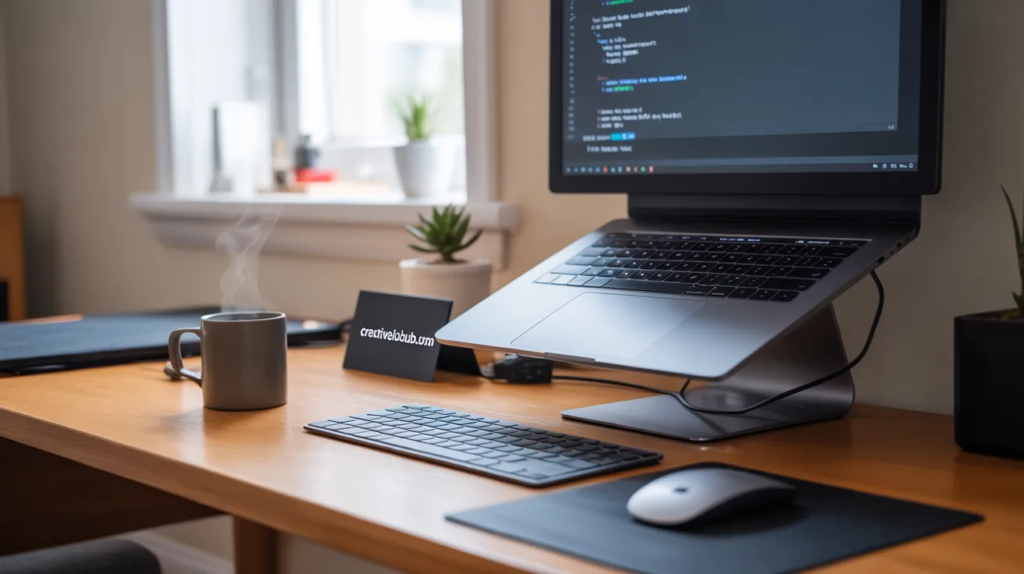
Your initial setup isn’t a one-time project. Regular maintenance and adjustments keep your workspace functioning optimally.
Regular Equipment Checks
Technology breaks down over time. Schedule regular checks of your equipment. Clean your keyboard and mouse weekly to prevent buildup of dust and debris. Wipe down your monitor with a microfiber cloth. Check cable connections to ensure everything remains secure.
Update your software and operating system regularly. These updates often include security patches and performance improvements. Back up your important files to cloud storage or an external hard drive. Losing work because of a computer failure is preventable with simple backup routines.
Evaluating and Improving
Your needs change over time. What worked initially might not work six months later. Periodically assess your remote work setup. Are you experiencing new discomforts? Has your work changed in ways that require different equipment? Stay open to making adjustments.
Join online communities of remote workers. These groups share tips, product recommendations, and solutions to common problems. Learning from others’ experiences helps you avoid mistakes and discover improvements you might not have considered.
Budget-Friendly Setup Options
Building an effective remote work setup doesn’t require spending thousands of dollars. Smart shopping and creative solutions help you create a functional workspace on any budget.
Look for refurbished or used equipment. Office chairs, desks, and monitors from liquidation sales or online marketplaces cost significantly less than new items. Check for companies downsizing or closing offices in your area. They often sell quality furniture at fraction of retail prices.
Start with essentials and upgrade gradually. You need a decent chair and a stable desk immediately. Other improvements can happen over time as your budget allows. Prioritize items that affect your health and productivity most directly.
DIY solutions work for some elements of your setup. Stack books under your laptop to raise it to eye level. Use cardboard boxes as temporary standing desk converters. Make your own cable management system with binder clips. These temporary solutions let you test concepts before investing in permanent products.
Conclusion
Creating an effective remote work setup requires thoughtful planning and investment, but the payoff in comfort, productivity, and job satisfaction makes it worthwhile. Start with the fundamentals like a good chair and proper ergonomics. Build your technology infrastructure to support reliable communication and collaboration. Establish routines and boundaries that protect your wellbeing.
Remember that your perfect setup is unique to you. What works for someone else might not suit your needs, space, or budget. Experiment with different arrangements and tools until you find what helps you do your best work. Your remote work setup should evolve as your work changes and as you discover what truly matters for your productivity and comfort.
What’s the first improvement you’ll make to your workspace today?
FAQs
What is the minimum budget needed for a basic remote work setup? You can create a functional remote work setup for $300 to $500. This covers a basic desk, an ergonomic chair, and essential accessories. Prioritize a good chair first since it directly impacts your health. Use existing furniture temporarily for other elements while you save for upgrades.
How important is a standing desk for remote work? Standing desks offer health benefits but aren’t essential for everyone. If you experience back pain or want more movement options, they’re worth considering. Start with a desk converter to test whether you actually use the standing feature before investing in a full standing desk. Many people find alternating between sitting and standing throughout the day reduces discomfort.
Can I use my dining table as a permanent workspace? Dining tables work as temporary solutions but present challenges for long-term use. They’re usually the wrong height for proper ergonomics and lack storage options. If a separate desk isn’t possible, add a laptop stand and external keyboard to improve positioning. Use portable organizers to keep work items separate from dining supplies.
What internet speed do I need for remote work? Basic remote work requires at least 25 Mbps download and 5 Mbps upload speeds. If you frequently participate in video conferences or transfer large files, aim for 50 Mbps or higher download speeds. Test your actual speeds and upgrade if you experience frequent lag or disconnections. Wired ethernet connections provide more stability than WiFi for important calls.
How do I reduce eye strain from long hours of screen time? Follow the 20-20-20 rule by looking at something 20 feet away for 20 seconds every 20 minutes. Position your monitor at arm’s length with the top at or below eye level. Adjust screen brightness to match your environment and use blue light filters in the evening. Take regular breaks to rest your eyes completely.
Should I invest in an external monitor for my laptop? An external monitor significantly improves productivity for most remote workers. It provides more screen space and better ergonomic positioning than a laptop alone. If budget permits, this is one of the most valuable upgrades you can make. A 24-inch monitor offers good value, though larger screens benefit those working with multiple documents simultaneously.
How can I soundproof my home office on a budget? Complete soundproofing is expensive, but simple solutions reduce noise significantly. Add weather stripping around doors to block sound. Hang heavy curtains or blankets on walls. Place rugs or carpet on hard floors to absorb sound. Use a white noise machine or background music to mask disruptive sounds. Position your desk away from noisy areas when possible.
What’s the best way to organize cables in my workspace? Start by labeling all cables so you know what connects to what. Use cable clips to route wires along desk legs or walls. Cable sleeves bundle multiple cords together neatly. Velcro ties keep excess cable length controlled. Consider a cable management tray under your desk to hide power strips and excess cords completely.
How often should I take breaks during remote work? Stand up and move every 30 to 60 minutes. Even brief movements help reduce physical strain. Take a longer break every two to three hours to step away from your workspace completely. Use these breaks for stretching, walking, or activities unrelated to work. Regular breaks improve focus and prevent burnout over time.
Do I need special lighting for video calls? You don’t need professional lighting, but good illumination improves how you appear on camera. Face a window for natural light, but avoid sitting with a bright window behind you. Add a desk lamp to fill in shadows on your face. Position lights at face level rather than above or below. Simple ring lights designed for video calls are affordable and effective.
Also Read : Lizzo Weight Loss